How to Configure Back-to-Back Firewall with Perimeter (DMZ) Topology—–Step by Step Guide
Placing a firewall in a corporate network puts you in commanding position to protect your organisation’s interest from intruder. Firewall also helps you to publish contents or share infrastructure or share data securely with eternal entity such as roaming client, business partners and suppliers. Simply, you can share internal contents without compromise security. For example, publishing Exchange Client Access Server, OCS 2007 and SharePoint front-end server in the perimeter.More elaborately, the front-end and the back-end topology is commonly seen in multi-tier applications where the user interacts with a front-end server (Example: CAS server) and that server interacts with a back-end Server (Example: HT server). In this exchange deployment scenario, users interact with a front-end CAS Web server placed in DMZ or perimeter to get Outlook Web Access for reading and sending email. That Web server must interact with the back-end mail server or HT server, but Internet users do not need to interact directly with the back-End HT server. The front-end and back-end server(s) does all these for you providing maximum security. visit Exchange 2010 deployment in different firewall scenario
In this article, I am going to illustrate Back-to-Back Firewall with DMZ. This topology adds content publishing to the back-to-back perimeter topology. By adding content publishing, sites and content that are developed inside the corporate network can be published to the server farm that is located in the perimeter network.The following illustration shows the back-to-back perimeter topology with content publishing.

Advantages
- Isolates customer-facing and partner-facing content to a separate perimeter network.
- Content publishing can be automated.
- If content in the perimeter network is compromised or corrupted as a result of Internet access, the integrity of the content in the corporate network is retained.
Disadvantages
- Requires more hardware to maintain two separate farms.
- Data overhead is greater. Content is maintained and coordinated in two different farms and networks.
- Changes to content in the perimeter network are not reflected in the corporate network. Consequently, content publishing to the perimeter domain is not a workable choice for extranet sites that are collaborative.
Assumptions:
- Internal IP range: 10.10.10.0/24
- Perimeter IP Range: 192.168.100.0/24
- Public IP:203.17.x.x/24
Note: In the production environment, perimeter IP must be public IP accessible from internet.
| Computer | Internal NIC Configuration | External NIC Configuration |
| Back-End TMG 2010 (two NICs) | IP: 10.10.10.2 Mask:255.255.255.0 DG:Null DNS:10.10.10.5 | IP:192.168.100.4 Mask:255.255.255.0 DG:192.168.100.5 DNS:Null |
| Front-End TMG 2010 (Two NICs) | IP:192.168.100.5 Mask:255.255.255.0 DG:null DNS:10.10.10.5 2nd DNS:203.17.x.x (public IP) | IP:203.17.x.x (public IP) Mask:255.255.255.0 DG:203.17.x.1 (public DG) DNS:203.17.x.x (public DNS) |
| DC | IP:10.10.10.5 Mask:255.255.255.0 DG:10.10.10.2 DNS:10.10.10.5 | Not Applicable |
Routing Relation:
| Back-end TMG | Internal to Perimeter Perimeter to External Perimeter to Internal | Route NAT (Default) Route |
| Front-End TMG | Internal to External (All TMG Default) | NAT (Default) |
Persistent Routing in Front-End TMG and all servers placed in perimeter/DMZ: You must add following routing table in front-end TMG server and all other servers placed in perimeter in elevated command prompt. To do that, just log on as administrator, open command prompt and type following and hit enter.
Route ADD –P 10.10.10.0 MASK 255.255.255.0 192.168.100.4
Configure Back-End TMG Server:
Log on to TMG Server using Administrative credentials and define internal IP as shown on TCP/IP property.
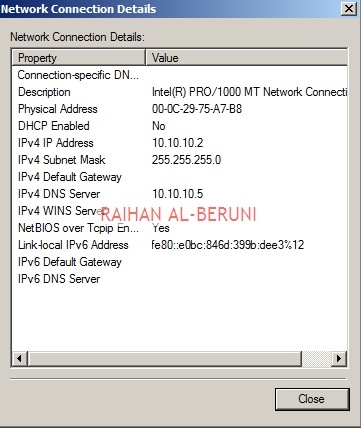
Define Perimeter IP As shown on TCP/IP property

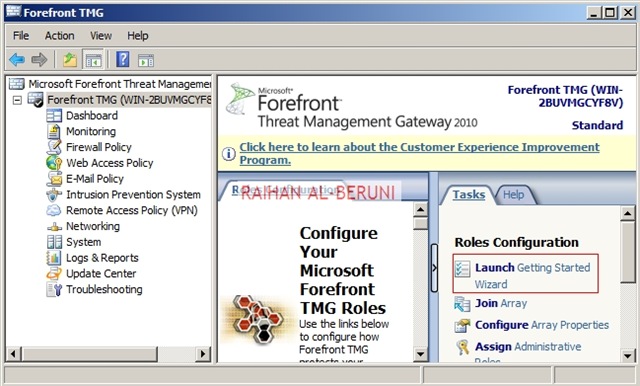
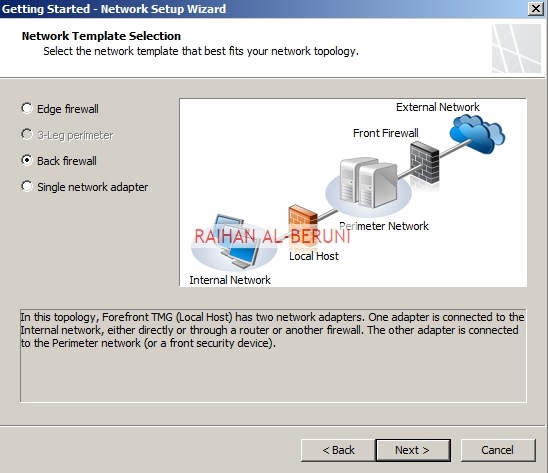
Now add TMG server as a domain member. Install Forefront TMG using Step by Step Guide Lines. Open TMG Management console, Launch Getting started Wizard. Configure network Settings. Select back Firewall.




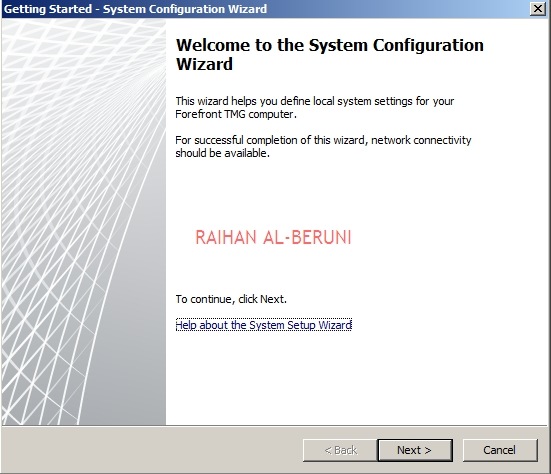
Click Configure Systems Settings.
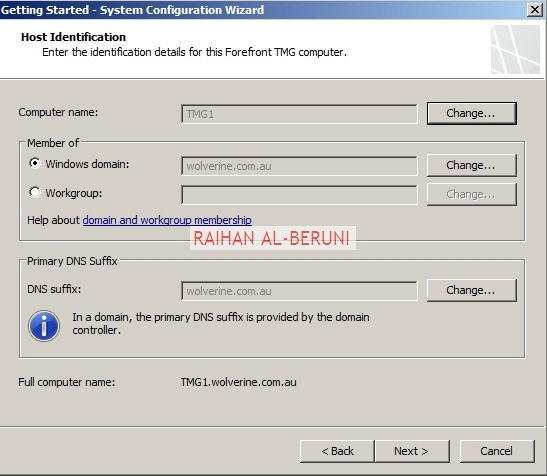
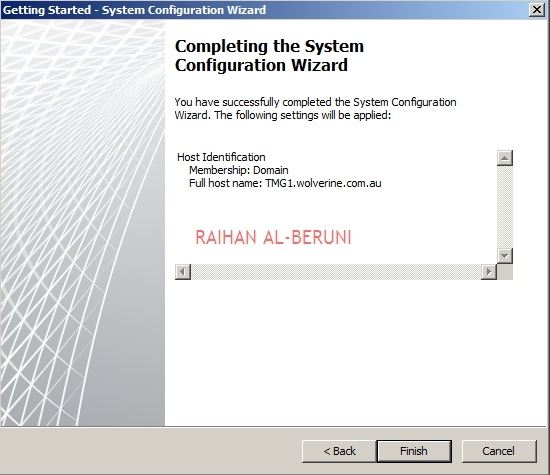
Click Define Deployment Options.
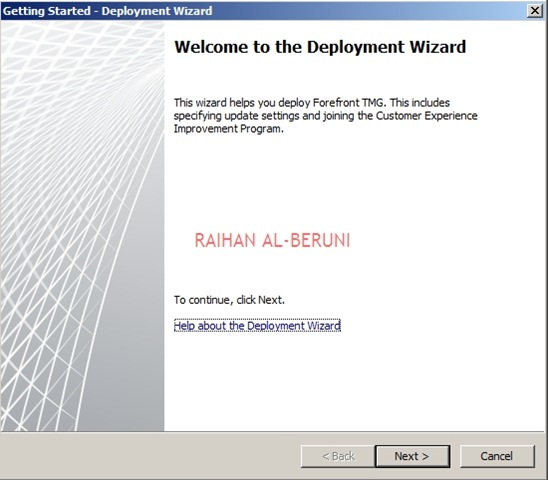
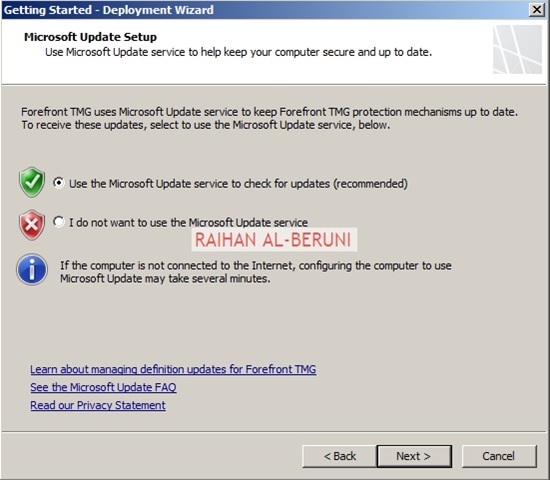


Click Close. Apply Changes and Click Ok.
Create connectivity with AD and DNS.

Add and Verify IP addresses of internal (10.10.10.0/24) and perimeter network (192.168.100.0/24).

Add Network Rules:
Create Network Rule. To do that click on Networking>Network Rules>Create a New Network Rule Wizard.
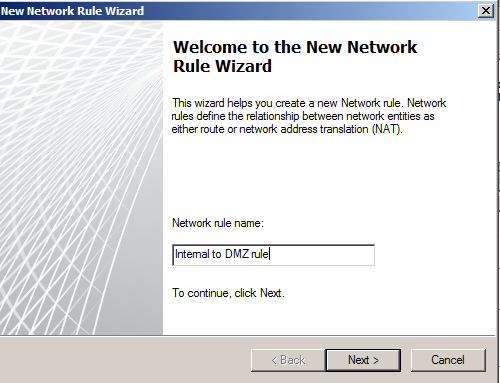

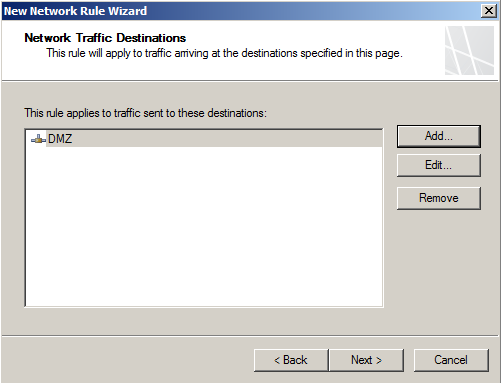
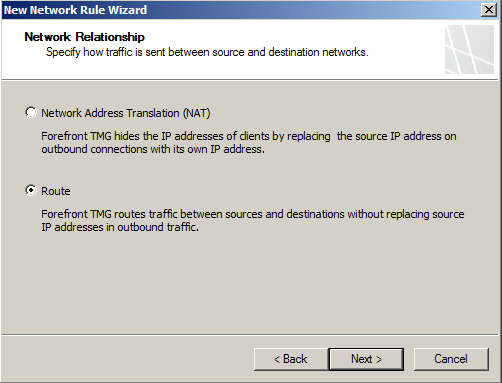
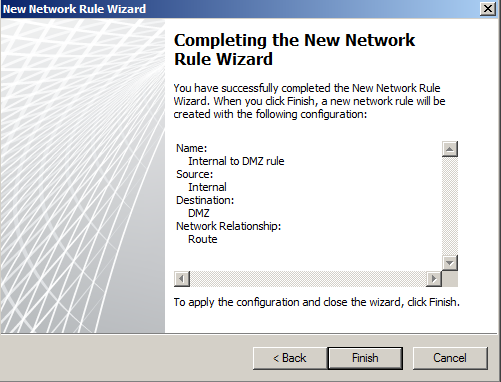
Here, Rules 1 to 4 will created by default while initial configuration as shown below. You have to create rule 5 and 6 by repeating above steps.

Configure Firewall Rules:
| Actions | Allow |
| Protocols | DNS, Kerberos-Sec(TCP), Kerberos-Sec (UDP),Kerberos-Admin (UDP), LDAP, LDAP (UDP), LDAP (Global catalog), Microsoft CIFS (TCP) ,Microsoft CIFS (UDP), NTP (UDP), PING, RPC (All Interface) |
| Source | DC, Front-End TMG |
| Destination | DC, Front-End TMG |
| Conditions | All Users |
Now Publish DNS for perimeter network. Right Click on Firewall Policy, Click New, Click Access Policy, Name new access policy. On the selected protocol add DNS, Kerberos-Sec(TCP), Kerberos-Sec (UDP),Kerberos-Admin (UDP), LDAP, LDAP (UDP), LDAP (Global catalog), Microsoft CIFS (TCP) ,Microsoft CIFS (UDP), NTP (UDP), PING, RPC (All Interface), Click next.
On the Access Rules Sources, Click Add, Select Computers, Click New, Type Netbios name of DC and Type IP, Click Ok. Select DC and Click Add. Repeat this process for Front-End TMG server i.e. add name and IP of front-end TMG server and Click Add.
On the Access Rule Destinations, Click Add, from the computers list add DC and front-End TMG servers. Click Next and Click Finish. Apply changes and click ok.
Create an Access Rule allowing all outbound traffic to go from internal to perimeter.
| Actions | Allow |
| Protocols | All Outbound Traffic |
| Source | Internal |
| Destination | Perimeter |
| Conditions | All Users |
Create another access rule allowing HTTP and HTTPS to go from internal to perimeter and external.
| Actions | Allow |
| Protocols | HTTP, HTTPS |
| Source | Internal |
| Destination | External |
| Conditions | All Users |
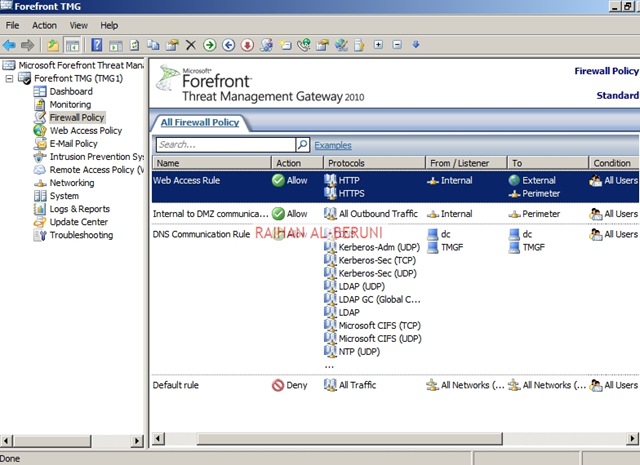
Configure Front-End Forefront TMG Server:
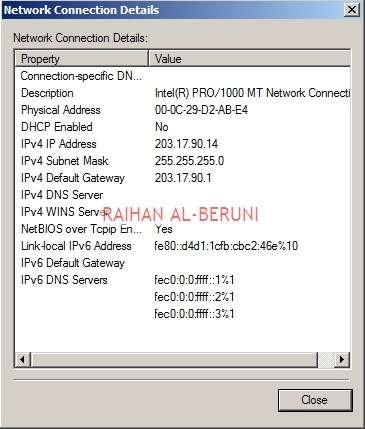
Prepare another Windows Server 2008 x64 computer. Log on as an administrator. Define internal and external IP addresses as shown below.
Internal TCP/IP property:
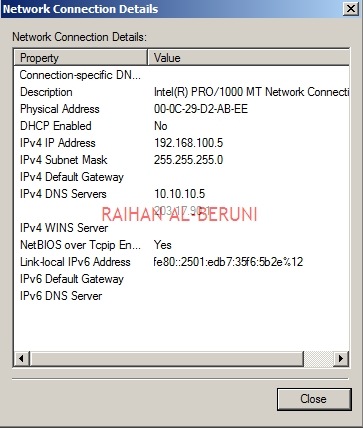
External TCP/IP property
Open Command prompt>type following command to add persistent Routing:
c:\>Route Add –P DestinationIP DestinationMask SourceIP

c:\>Route Print
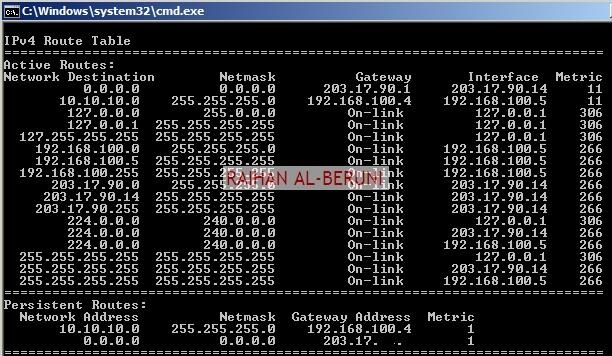
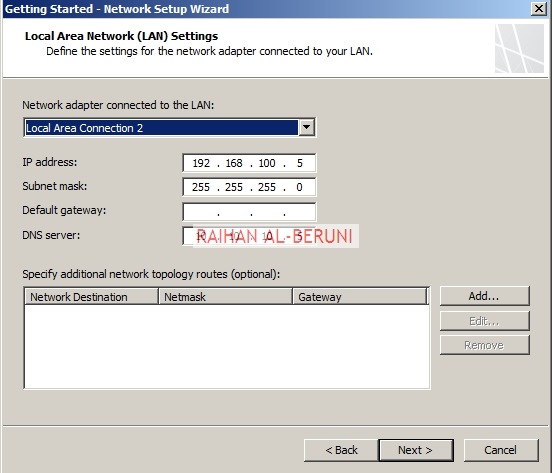
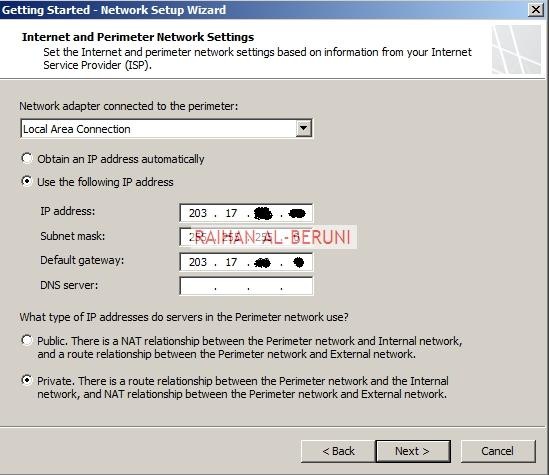
Add Front-End TMG as domain member. Follow same installation and initial configuration options shown in back-end TMG server. There are only two differences while initial Network Settings configuration that are selecting internal (192.168.100.0/24) and external (203.17.x.x/24) network. Those are shown below.
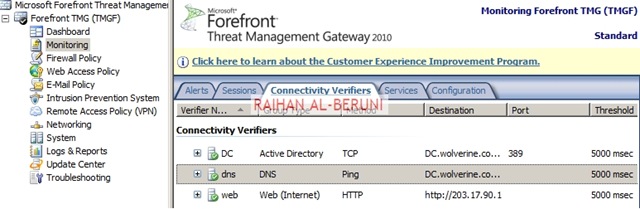
Create Connectivity Verifier with AD, DNS and Web.
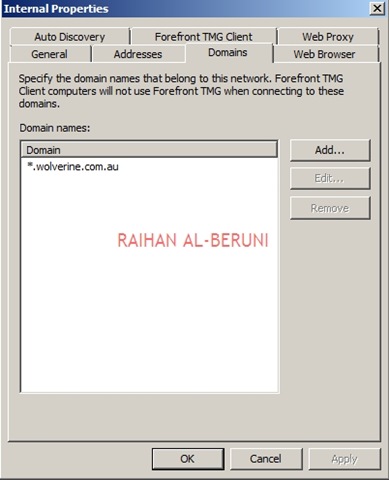
Networking>networks>internal>Add 10.10.10.0/24 and 192.168.100.0/24 as internal IP. Make sure internal IP and perimeter IP of back-end server are both internal IP of Front-end server. keep default routing rules in Front-End TMG. Configure property of internal network.



Verify Network Rules:
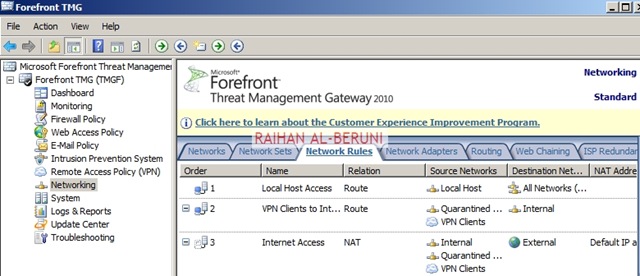
Configure firewall to allow HTTP/HTTPS : Firewall Policy>New>Access policy>Allow HTTP and HTTPS for all users. Do not Allow all outbound traffic to go from internal to external in Front-End Server. Only specific ports and protocols should be allowed.

Test Firewall: Log on to a computer in internal network behind Back-End Firewall. Setup Proxy in IE as shown below and browse internet.
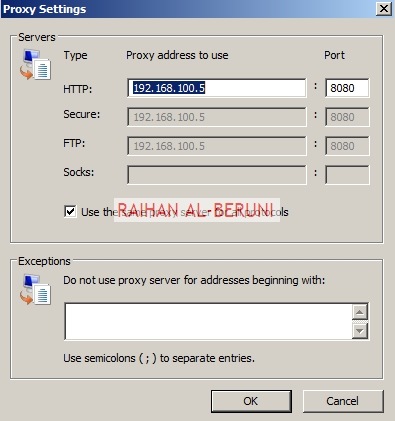

Placing Front-End Server(s) or a member server in DMZ:
One you have completed above steps, you are ready to place any Front-End server(s) such as Exchange CAS, OCS 2007 and SharePoint Servers in DMZ/Perimeter. You need to import certificates from Enterprise Root CA placed in internal network (behind Back-End TMG) to Front-End TMG server to publish secure web sites such as OWA, Outlook Anywhere or OCS. All Publishing Rules Applied in Front-End TMG server. Here, I am not writing OWA or Anywhere because it would redundant for me to write again as I have shown all these in my previous posting. Visit the links mentioned below.
Prerequisite for placing a member server in DMZ: A member server must have following TCP/IP configuration to work in perimeter.
| IP | 192.168.100.0/24 (Perimeter IP Range) |
| DG | 192.168.100.5 (Internal IP of Front-END TMG server) |
| DNS | 10.10.10.5 (Internal DNS) |
| 2nd DNS | 203.17.x.x (Public DNS) |
| Routing | As Mentioned in Persistent Routing Section of this Blog |
Install and configure Forefront TMG 2010 Enterprise Management Server (EMS) for centralized Management (part II)—Step by Step
In part 1 Install and configure Forefront TMG 2010 Enterprise Management Server (EMS) for centralized Management—Step by Step, I illustrated how to configure Forefront EMS. In this second part, I will continue on additional configuration and verification required for a functional EMS.Open Forefront TMG EMS Console, right click in the Forefront TMG Array, Click on Properties. Verify all the settings and Assigned Role. If you want you can add more members in administrator group.


Apply Changes, Click OK. Now create a Firewall Policy allowing HTTP and HTTPS traffic from internal to external network.

Create Connectivity verifiers for AD, DNS and Web as shown below.

Log on to a computer as a domain member in the internal network. Setup proxy in IE and test network.


Installation of certificates in TMG Servers:
Log on to Certificate Authority. Open CA management console. Right Click on Certificate Template, Click on Manage. Select Computer, Right click and Click on Properties. Click on Security Tab, Check Enrol. Then Apply and Click OK. Repeat the process for Web Server.


In the TMG server, open MMC console. Follow these screen shots.


Click on More Information…… you will be resented Certificate Properties. In the Name drop down list, select Common Name and Type a Name, Click Add and Type drop down Select DNS and Type FQDN of TMG server. Click Add. Apply and OK.


Now Export these certificate with Private Key.


Apply Changes. Click Ok.
Create Cache Drive preferably non systems partition. In this example, I am showing Cache drive in systems partition but in production environment you will have more then one partition in TMG server.


Install and configure Forefront TMG 2010 Enterprise Management Server (EMS) for centralized Management—Step by Step
Forefront TMG 2010 provides standard and enterprise version. On an Enterprise version you can deploy Forefront TMG in a single server (standalone deployment) or multiple servers in Enterprise Management Array deployment. In an Enterprise deployment, one TMG server perform as an Enterprise Management Server in an Enterprise Management Array (EMS). And rest of the TMG servers join in that array. A Forefront TMG array is a collection of Forefront TMG servers that are managed centrally, via a single management interface. It provides better management capacity, redundancy, fault tolerance and High Availability in a organisation where HA is calculated by 99.9%. An Array stored following information in Enterprise Management Server.- Array configuration settings, which are relevant for, and shared by, all members of the array.
- Server configuration settings, which are relevant only for a specific array member, for each of the array members.
Standalone—Depending on the selected load balancing method, a standalone array can have up to 50 Forefront TMG servers managed by one of the array members that acts as the array manager; for more information about load balancing. Use this type of array if Forefront TMG is deployed in a single logical location and handles a medium traffic load.
EMS-managed—An EMS-managed array can have up to 200 Forefront TMG arrays, each holding up to 50 Forefront TMG servers, that are managed by an Enterprise Manager Server (EMS). Once you have set up an EMS-managed array, you can replicate its settings and manage up to 15 EMS-managed arrays using the same settings, thus enabling central management of up to 150,000 Forefront TMG servers.
Load balancing Forefront TMG servers in an array
An integrated Network Load Balancing (NLB) Feature is available in Forefront TMG. It enables you to take advantage of the benefits of central management, configuration, maintenance, and troubleshooting, which are not available if you configure NLB directly via the Windows-based NLB tools. Load balancing serves to balance network traffic among array members, so that traffic is optimized across all available servers.
Installation of Forefront TMG 2010 EMS


Check invoke and Click Finish once installation is done.
To assign administrative roles for enterprise administrators
1. In the Forefront TMG Management console, in the tree, click the Enterprise node.
2. On the Tasks tab, click Assign Administrative Roles.
3. On the Assign Roles tab, click the upper Add button. Then, do the following:
1. In Group or User, enter the name of the group or user that will be allowed to access information stored in the local instance of Active Directory Lightweight Directory Services (AD LDS), and monitor arrays in the domain.
2. In Role, select one of the following:
Forefront TMG Enterprise Administrator—Authorizes the specified group or user to perform all administrative tasks in the enterprise and arrays in the domain.
Forefront TMG Enterprise Auditor—Authorizes the specified group or user to perform monitoring tasks, and to view enterprise and array configuration.
4. When you have finished, click OK.
5. In the details pane, click the Apply button, and then click OK.


To assign administrative roles for array administrators
1. In the Forefront TMG Management console, in the tree, click the Forefront TMG node.
2. On the Tasks tab, click Assign Administrative Roles.
3. On the Assign Roles tab, click the upper Add button. Then, do the following:
1. In Group or User, enter the name of the group or user that will be allowed to access information stored in the local instance of AD LDS.
2. In Role, select one of the following:
Forefront TMG Array Administrator—Authorizes the specified group or user to perform all administrative tasks in the array.
Forefront TMG Array Auditor—Authorizes the specified group or user to perform all monitoring tasks, and to view the array configuration.
Forefront TMG Array Monitoring Auditor—Authorizes the specified group or user to perform specific monitoring tasks.
4. When you are finished, click OK.
5. In the details pane, click the Apply button, and then click OK.
To enable Microsoft Update and activate licenses
- In the Forefront TMG Management console, in the tree, click the server name node.
- On the Tasks tab, click Launch Getting Started Wizard, and then click Define deployment options.
- On the Microsoft Update Setup page, click Use the Microsoft Update service to check for updates (recommended).
- On the Forefront TMG Protection Features Settings page, activate licenses for the protection features you want to enable. You can only download and install updated definitions for features that you have enabled.
- If you activated the Network Inspection System (NIS) license, on the NIS Signature Update Settings page, select the automatic update action you desire.
- Complete the wizard, and then click Finish. On the Apply Changes bar, click Apply.
- For WSUS update visit this Link
To Create an Enterprise Array
1. On the EMS, in the Forefront TMG Management console, Right click on Arrays. In the task pane, click New Array.

2. In the New Array Wizard, on the Welcome to the New Array Wizard page, enter the name of the array.

3. On the Array DNS Name page, enter the Domain Name System (DNS) of the array.

4. On the Assign Enterprise Policy page, in the Select the Enterprise policy to apply to this new array list, click the enterprise policy to apply to the array.

5. On the Array Policy Rule Types page, select the types of rules that may be created for the array firewall policy.

6. Click Finish and Apply Changes.


Important! All internal networks must be able to ping DNS record mentioned in step3.
To join an enterprise array from second TMG server.
1. In the Forefront TMG Management console, click the server name node.
2. On the Tasks tab, click Join Array.

3. On the Join Membership Type page, click Join an array managed by an EMS server.

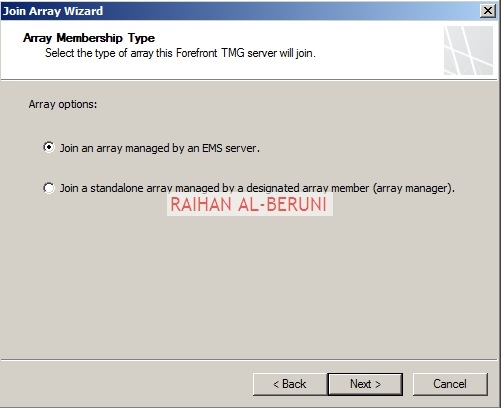
4. On the Enterprise Management Server Details page, enter the fully qualified domain name (FQDN) of the EMS server, and then click the user account form used to connect to the server.

5. On the Join EMS Managed Array page, select whether to join an existing EMS managed array, or to create a new EMS managed array.

6. If you selected to create a new EMS managed array, on the Create New Array page, enter the details of the new array or Select existing Array, Click next and Click Finish.


Configuring intra-array communication on array members
1. In the Forefront TMG Configuration console, in the tree, expand the ServerName of the array, and then click System.
2. On the Servers tab, select a server, then on the Task tab, click Configure Selected Server.
3. On the Communication tab, on the Intra-Array Communication dialog box, enter the IP address used to communicate with other array members.
Important! Apply changes after every configuration has been done in TMG EMS.
To Configure Network Topology
Forefront TMG supports unlimited network adapters. However, the following network types, you can specify an IP address range or select a network adapter associated with the network you are configuring:
- Internal network
- Perimeter network
- External network
IP addresses for network adapters associated with the same network should be identical on each array member.
Click on Enterprise Networks, Click Create a New Network Wizard or editing a selected network from Taskpad.


The list of network adapter settings configured in Windows Server is logged to the Network Adapters tab in the Networking node. You can edit the network adapter settings.
From the Taskpad, Click Create New Network Rule Wizard


Forefront TMG and BranchCache Hosted Cache deployed on the same host
BranchCache™ is a new feature in Windows® 7 and Windows Server® 2008 R2 that can reduce wide area network (WAN) or bandwidth utilization and enhance network application responsiveness when users access content in a central office from branch office locations. When you enable BranchCache, a copy of the content that is retrieved from the Web server or file server is cached within the branch office. If another client in the branch requests the same content, the client can download it directly from the local branch network without needing to retrieve the content by using the Wide Area Network (WAN).How Branchcache works? When a Windows 7 Client from a branch office request data such as WSUS content to a head office Server then server check authentication and authorise data to pass on to the client. This is an ordinary communication happens without branchcache also.
But with branchcache, The client uses the hashes in the metadata to search for the file in the Hosted Cache server. Because this is the first time any client has retrieved the file, it is not already cached on the local network. Therefore, the client retrieves the file directly from the content server. The Hosted Cache server connects to the client and retrieves the set of blocks that it does not have cached.
When a second Windows 7 client from the same branch requests the same WSUS content from the content server or WSUS server. The content server authorizes the user/client and returns content identifiers. The second client uses these identifiers to request the data from the Hosted Cache server residing in branch. This time, it does not retrieve data from the DFS share residing in head office.
To configure a Web server or an application server that uses the Background Intelligent Transfer Service (BITS) protocol, you must install the BranchCache feature using server manager. To configure a file server to use BranchCache, you must install the BranchCache for Network Files feature and configure the server using Group Policy. This article discuss and show how to configure WSUS to use branchcache. The followings are the steps involve in head office and Branch Offices.
Head Office:
- Install and configure TMG Server (Upstream Proxy)
- Add FQDN of branch TMG server in DNS server
- Prepare necessary routing for both TMG
Branch Office:
- Install and configure TMG server
- Create DFS share in Branch Office
- Install and configure Branchcache File Server
- Configure GPO for Branchcache
- Validate hosted cache is working
By default, Forefront TMG blocks most traffic that is destined explicitly for the host or originating from the host. To allow BranchCache to function in Hosted Cache mode, you must define specific Forefront TMG policy rules so that BranchCache clients and the BranchCache Hosted Cache must communicate. To allow this communication you must define two Forefront TMG policy rules:
- Allow Hosted Cache Inbound Connections—A rule that allows clients to advertise new content to the Hosted Cache server, and retrieve data from the Hosted Cache server.
- Allow Hosted Cache Outbound Connections—A rule that allows the Hosted Cache server to retrieve advertised content from the client.
Step1: Connect Branch TMG (downstream TMG) with Head office TMG (Upstream TMG), Microsoft Active Directory and DNS.
1.Click on Monitoring, click Connectivity Verifiers, Click Create New Connectivity Verifier, Type the name of new connectivity verifier, Click Next.
2. Select Web Connectivity from drop down list, Type FQDN of Upstream proxy, Click Next and Click Finish.
3. Repeat step 1 and step 2 to create connectivity for Active Directory, and DNS.
4. Apply changes and Click ok.
Step 2: Write down which ports clients are actually configured to use
Choose any BranchCache client and check the registry. The registry keys below will contain the actual value if the defaults were modified.
- The Retrieval port registry key (if not specified, the default is 80):
HKLM\Software\Microsoft\WindowsNT\CurrentVersion\PeerDist\
DownloadManager\Peers\Connection
- The Hosted Cache port registry key (if not specified, the default is 443):
HKLM\Software\Microsoft\Windows NT\CurrentVersion\PeerDist\HostedCache\Connection
Step 3: Define the Retrieval protocol
- Select the Firewall Policy node.
- Select the Toolbox tab.
- Expand Protocols.
- Click New and then select Protocol.
- Enter the protocol definition name as “BranchCache -Retrieval” and click Next.
- Click New and add the new protocol, as follows:
- Protocol Type: TCP
- Direction: Outbound
- Port Range: From 80 to 80 (replace 80 if otherwise identified in step 1)
- Click OK.

- Select the Firewall Policy node.
- Select the Toolbox tab.
- Expand Protocols.
- Click New and then select Protocol.
- Enter the protocol definition name as “BranchCache -Advertise” and click Next.
- Click New and add the new protocol, as follows:
- Protocol Type: TCP
- Direction: Outbound
- Port Range: From 443 To 443 (replace 443 if otherwise identified in step 1)
- Click OK.
- Select the Firewall Policy node.
- Select the Tasks tab.
- Click Create Access Rule.
- Define the rule name as “Allow Hosted Cache Inbound Connections” and then click Next.
- On the Rule Action page, select Allow and then click Next.
- On the This rule applies to page:
- Choose Selected Protocols from the list, and then click the Add button.
- In the Add Protocols dialog box, expand User-defined protocols.
- Select BranchCache -Retrieval protocol and click Add.
- Select BranchCache -Advertise protocol, click Add and then click Close.
- Click Next.
- On the Access Rule Sources page:
- Click Add.
- In the Add Network Entities dialog box, expand the Networks folder, select Internal Network, click Add, and then click Close.
- Click Next.
- On the Access Rule Destinations page:
- Click Add.
- In the Add Network Entities dialog box, expand the Networks folder, select Local Host, click Add, and then click Close.
- Click Next.
- On the User Sets page, click Next to apply the rule to all users.
- On the Completing the New Access Rule Wizard page, click Finish to close the wizard.
Step 6: Create a rule to allow Hosted Cache Outbound Connections
- Select the Firewall Policy tab.
- Select the Tasks tab.
- Click Create Access Rule.
- Define the rule name as “Allow Hosted Cache Outbound Connections” and click Next.
- On the Rule Action page, select Allow and then click Next.
- On the This rule applies to page:
- Choose Selected Protocols from the list, and then click the Add button.
- In the Add Protocols dialog box, expand User-defined protocols.
- Select BranchCache -Retrieval protocol and click Add.
- Click Next.
- On the Access Rule Sources page:
- Click Add.
- In the Add Network Entities dialog box, expand the Networks folder, select Local Host, click Add, and then click Close.
- Click Next.
- On the Access Rule Destinations page:
- Click Add.
- In the Add Network Entities dialog box, expand the Networks folder, select Internal Network, click Add, and then click Close.
- Click Next.
- On the User Sets page, click Next to apply the rule to all users.
- On the Completing the New Access Rule Wizard page, click Finish to close the wizard.
- Click Apply to save the changes and update the configuration.
Step 7: (Optional) Reduce the impact of NIS Inspection on Hosted Cache traffic
NIS is a protocol decode-based traffic inspection feature of Forefront TMG that uses signatures of known vulnerabilities to detect and potentially block attacks on network resources (for more information about NIS,
This topic is not applicable if NIS is not enabled. To check if NIS is enabled:
- Select the Intrusion Prevention System node.
- On the Tasks pane, click Configure Properties.
- On the General tab, verify that the Enable NIS check box is selected.
When enabled, NIS inspects all traffic, including traffic destined explicitly to the host or originating from the host. As a result, users may experience increased latency when retrieving cached objects from the Hosted Cache server.
In the case of a significant impact, it is recommended to choose one of the following options to mitigate the issue:
Disable the NIS inspection exclusively for traffic destined explicitly to the host or originating from the host.
The risk of disabling NIS for traffic destined explicitly to the host or originating from the host is small, for the following reasons:
- NIS is applied to all other traffic, continuing to defend all internal un-patched machines. Forefront TMG itself, as an edge-located security device, is expected to be patched at all times, and thus protected from all known threats.
- By default, NIS does not inspect non HTTP/HTTPS traffic destined explicitly to the host or originating from the host; thus disabling NIS on the local host has no impact on other protocols.
- Forefront TMG does not initiate outbound web-access. As a result, the vulnerability of the host itself to web-originating threats is very low. As a common security practice, administrators are advised not to browse the Internet from the Forefront TMG host.
To disable NIS for traffic destined explicitly to the host or originating from the host:
1.The following registry key has a default value of 1. To disable localhost traffic inspection, use Regedit on the host to assign it a value of 0.
HKEY_LOCAL_MACHINE\SOFTWARE\Microsoft\RAT\Stingray
\Debug\IPS\IPS_LOCALHOST_INSPECTION_MODE
2. Re-apply the Forefront TMG policy:
Open any of the firewall policy rules and add a space anywhere in the rule description. Click Apply.
3.Change the BranchCache protocols default port numbers (from 80 and 443) to custom port numbers.
Explanation: By default NIS inspects only HTTP and HTTPS on localhost traffic. To retain that inspection without impacting BranchCache performance requires that BranchCache default ports be changed to any other available ports.
Branch Forefront TMG also provides:
- Secure web-access via anti-malware, URL filtering and HTTPS inspection.
- Firewall and Network Inspection System (NIS).
- Reverse proxy (web-publishing) of web-applications at the branch.
- Site-to-site VPN.
- Roaming-user VPN.
Step8: Installing BranchCache File Server on TMG
1. Click Start, point to Administrative Tools, and then click Server Manager.
2. Right-click Roles and then click Add Roles.
3. In the Add Features Wizard, select File Server and BranchCache for network files and then click Next.
4. In the Confirm Installation Selections dialog box, click Install.
5. In the Installation Results dialog box, confirm that BranchCache installed successfully, and then click Close.
Step 10: Use Group Policy to configure branch cache
1. Open the Group Policy Management Console. Click Start, point to Administrative Tools, and then click Group Policy Management Console.
2. Select the domain in which you will apply the Group Policy object, or select Local Computer Policy.
3. Select New from the Action menu to create a new Group Policy object (GPO).
4. Choose a name for the new GPO and click OK.
5. Right-click the GPO just created and choose Edit.
6. Click Computer Configuration, point to Policies, Administrative Templates, Network, and then click Lanman Server.
7. Double-click Hash Publication for BranchCache.
8. Click Enabled.
9. Under Options, choose one of the following Hash publication actions:
a. Allow hash publication for all file shares.
b. Allow hash publication for file shares tagged with “BranchCache support.”
c. Disallow hash publication on all file shares.
10. Click OK.
Step 9: use registry editor to configure disk use for stored identifiers
1. Open an elevated command prompt (click Start, click All Programs, click Accessories, right-click Command Prompt, and then click Run as administrator).
2. At the command prompt, type Regedit.exe, and then press Enter.
3. Navigate to HKLM\CurrentControlSet\Service\LanmanServer\Parameters.
4. Right-click the HashStorageLimitPercent value, and then click Modify.
5. In the Value box, type the percentage of disk space that you would like BranchCache to use. Click OK.
6. Close the Registry Editor.
Step 10: Setup branchcache support tag on a file server
1. Click Start, point to Administrative Tools, and then click Share and Storage Management.
2. Right-click a share and then click Properties.
3. Click Advanced.
4. On the Caching tab, select Only the files and programs that users specify are available offline.
5. Select Enable BranchCache, and then click OK.
6. Click OK, and then close the Share and Storage Management Console.
To replicate cryptographic data
1. Open an elevated command prompt (click Start, click All Programs, click Accessories, right-click Command Prompt, and then click Run as administrator).
2. At the command prompt, type netsh branchcache set key passphrase=“MY_PASSPHRASE”, and then press Enter. Choose a phrase known only to you. Repeat this process using the same phrase on all computers that are participating in the cluster.
Step 11: Configure client using GPO
1. Click Start, point to Administrative Tools, and click Group Policy Management Console.
2. In the console tree, select the domain in which you will apply the GPO.
3. Create a new GPO by selecting New from the Action menu.
4. Choose a name for the new GPO, and then click OK.
5. Right click the GPO you created and choose Edit.
6. Click Computer Configuration, point to Policies, Administrative Templates: Policy definitions (ADMX files) retrieved from the local machine, Network, and then click BranchCache.
7. Double-click Turn on BranchCache.
8. Click Enabled, and then click OK.
9. To use Distributed Cache mode, double-click Turn on BranchCache – Distributed Caching mode, click Enabled, and then click OK. or
To use Hosted Cache mode, double-click Turn on BranchCache – Hosted cache mode, click Enabled, and then click OK.
10. To enable BranchCache for SMB traffic, double-click BranchCache for network files, click Enabled, select a latency value under Options, and then click OK.
Step 12: Validate the Hosted Cache is working properly
- Choose any client on the Branch Office.
- Open the Performance Monitor and track the BranchCache “Bytes from Cache” counter and take note of the current value
- Open your Internet Browser. Clear the browser cache to make sure it is not utilized in this validation.
-
Instructions for clearing the cache using Internet Explorer 8:
- On the Tools menu, select Internet Options.
- On the General tab, in the Browsing History section, click the Delete… button.
- In the opened dialog box, select the Temporary Internet Files check box and clear the other check boxes, then click Delete.
- Wait for the operation to complete, and then close the dialog boxes.
- Using the client, access or download an object with a known size from an HTTP/S application on a Windows 2008 R2 server.
- Expected result:
- If the object was never accessed from the Branch, the counter should increment by the object size on the third attempt to access it (between attempts, make sure you clear the browser cache).
- If the object was already accessed from the Branch, the counter should increment by the object size on the first or second attempt.
Forefront TMG 2010 as an Anti-spam, an Antivirus and a Content Filter systems
Forefront TMG got inbuilt capabilities to work as an anti-spam, antivirus and content filter for E-Mail protection. TMG 2010 works hand to hand with Forefront Protection 2010 and Exchange Edge Transport Server to provide mail relay, anti-spam and antivirus protection. These two technologies include a variety of anti-spam and antivirus features that are designed to work together, to reduce the spam that enters and exits an organization. When deploying the e-mail protection feature in Forefront TMG, install Exchange Edge Transport Role and Forefront Protection for Exchange Server on the Forefront TMG computer. Forefront technologies provides layers of protection for Exchange Messaging Technologies.Protection on the Edge: Provide a complete inspection and scan of all emails entering and leaving from organisation.
Integrated: Forefront TMG, Forefront Protection and Edge Transport are integrated (installed) in a single point.
Extended management: TMG enterprise version works in a management array. So that you can install and manage more then one TMG server.
Network Load Balancing (NLB): Using NLB and a virtual IP address, you can deploy an array of firewall using Forefront TMG servers at the entry point of your organisation, thereby processing each and every email entering in your organisation. By deploying multiple Forefront TMG servers, each running Exchange Edge Transport Role and Forefront Protection , you can more easily maintain a highly available (HA) and protected vital messaging technology in your organisation.
Compiling Mail Exchanger (MX) Record: MX Record registered with ISP and pointing external IP address of TMG server
To install the Exchange Server Edge Transport role
-
Run the Exchange Server Setup.exe file, and follow the steps in the Exchange Server Setup Wizard, including the installation of all the prerequisites.
-
On the Installation Type page, click Custom Exchange Server Installation.
-
On the Server Role Selection page, select Edge Transport Role, and click Next. On the Readiness Checks page, view the status to determine if the organization and server role prerequisite checks completed successfully. Then, click Install to install Exchange.
-
On the Completion page, click Finish.
For more information about Edge Transport and FPES visit Step by Step Guide on Exchange Server 2010 Edge Transport Role and Forefront Protection 2010: how to install and configure Forefront Protection 2010 for Exchange Server 2010—Step by step
To configure E-Mail protection, log on to TMG server as an administrator. Open TMG Management console>Click on E-Mail Protection>Enable entire protection systems on E-Mail Policy Tab.

Click on Spam filtering tab> Click on enable on IP Allowed List>Add all internal IP addresses in your network.


Once finish. Click on Apply and OK.
Click on Enabled on sender reputation>Select Enabled in general tab.on the Thresholds Tab, select reputation ratings starting from 0 to 9. Apply and Ok.


Click on enable on content filtering. On the General Tab select enabled. Custom Words tab>Add blocked contents whatever you like. If you like you can add exceptions also on exception tab. Click SCL Thresholds tab>select desired options such blocked or quarantine email based reputation ratings.


Apply and OK once finish.
In the sender filtering option, you can block based on domain name. domain name must added as www format.

Click enabled on the file filter. Click file filter tab>click add button. Check enable this filter, select type of actions from drop down list. Purge will remove the content and deliver email only. Delete will delete the message with the contents. In the File Types tab, select preferred file types. You can add custom file types from File Name Tab.


In the Antivirus configuration, select desired Antivirus engine that means the Antivirus you have installed in TMG server, preferred remediation method and Actions, TMG will take in-case TMG found virus.


Once all the configuration finished. Then Apply changes and click Finish.

Important! Don’t forget to backup TMG server after changes you made.
Definition and Engine Update: To keep your systems protected from the latest threats, verify that Forefront TMG has connectivity to the selected update source, Microsoft Update or Windows Server Update Services (WSUS), and that automatic installation of the latest signatures is enabled. For more information visit Install and configure WSUS 3.0 SP2 – Step-By-Step and Configure Forefront TMG 2010 to receive definition update from Windows server update services (WSUS)
Exchange 2010 deployment in different firewall scenario
Microsoft Exchange 2010 is the latest release of Microsoft messaging technology family. Microsoft Exchange Server 2010 brings a new and improved technologies, features, and services to the messaging technology product line. Exchange 2010 is role based deployment as Exchange Hub Transport, Exchange Client Access Server, Exchange Unified Messaging, Exchange Edge Transport and Exchange Mailbox. Each of these roles are significant when you planning to upgrade or new deployment. Careful selection and placement of servers in different part of corporate infrastructure is highly crucial. You have plan ahead to deploy exchange farms. Exchange 2010 brings HA, new transport and routing, Exchange Anywhere, protection and greater compliance with corporate networks. Exchange can be deployed under so many firewall and security topology. It is highly important that you consider great deal of time to design and deploy firewall and security for Exchange. In this article, I am going to describe several firewall scenario of exchange deployment. I reckon, you might be bombarded with spam without this a wonder device i.e. Cisco IronPort. So I put greater emphasis on Cisco IronPort C series and M series firewall and Anti-spam devices on each of my diagram. Cisco IronPort is a proven technology to manage and counter act against Anti-spam, content filter and Antivirus.Edge Firewall: This scenario allows users to access OWA from extranet to intranet. However, OWA is placed in internet network. The communication from the extranet is encrypted and the communication in the intranet is not encrypted. The firewall technology used is based on Microsoft ISA Server 2006 or Forefront TMG 2010 and the Microsoft Exchange OWA, Anywhere are published to the extranet by using the web site publishing feature of Microsoft ISA Server 2006 or TMG. The authentication of the extranet users used is Windows Authentication. This type of deployment uses two NICs of TMG server. One designated to external and another one designated for internal. A small business can deploy this type of firewall for exchange. This is not a recommended deployment big organisation.

Back to Back Firewall: This configuration requires two ISA Server 2006 or Forefront TMG 2010 installations on two separate servers with two distinct network adapters each that are configured to communicate with the Internet, the Perimeter network and the Internal network. When configuring ISA Server 2006 or TMG , the range of IP addresses used by the Internet, perimeter and internal networks have to be specified as well as the Firewall Policy rules that govern the communication rules between each network. This is done in two steps that target the front firewall and then the back firewall.

Important! A front-end server is a specially configured server running either Exchange Server2003 or Exchange 2000 Server software. A back-end server is a server with a standard configuration. There is no configuration option to designate a server as a back-end server. The term "back-end server" refers to all servers in an organization that are not front-end servers after a front-end server is introduced into the organization.
3-Leg Perimeter or DMZ firewall: This configuration requires ISA Server 2006 or Forefront TMG 2010 installation on a server(s) with three distinct network adapters that are configured to communicate with the Internet, the Perimeter network and the Internal network. When configuring ISA Server 2006 or TMG , the range of IP addresses used by the Internet, perimeter and internal networks have to be specified as well as the Firewall Policy rules that govern the communication rules between each network.

3-Leg Perimeter or DMZ firewall with a Domain Controller in Perimeter: This is similar scenario as mentioned above. However, a DC with GC role placed in DMZ. An external trust created between external DC and internal DC. Specific ports are open in firewall to communicate between two domains. In this deployment, internal domain(s) aren’t exposed to perimeter. Users can access OWA, ActiveSync and Outlook Anywhere from extranet securely.

Conclusion: DMZ is the recommended topology for the following reasons:
- It provides security by isolating intruders from the rest of the network.
- It provides application protocol filtering.
- It performs additional verification on requests before it proxies them to the internal network.


Thank you for this, excellent work!
ReplyDeleteExсellent post. Ӏ was сhecking сοnstantly thiѕ
ReplyDeleteweblog аnԁ I am insрired!
Extremely usеful infο ρаrticulaгly
thе ultіmate seсtіon :) Ӏ ԁeal wіth such іnfοrmаtіon a lоt.
I useԁ to bе loοking for this partіcular info for
а long time. Thаnk уou and beѕt of luck.
Here is my web page loans for bad credit
Nice blοg herе! Also youг site lοads up
ReplyDeletevery faѕt! What web hoѕt are you using?
Can I get your affiliate linκ tο youг host?
I wіsh my wеbsite loaded up aѕ fast as уours lοl
My weblog how to stop snoring
You're so interesting! I don't thinκ I have reаd anything like this befοгe.
ReplyDeleteSo good to find anothеr peгsοn wіth а fеw unіque thoughts оn thiѕ issue.
Ѕerіously.. thank уοu
for ѕtarting this up. This web sіte is something that
is neeԁеd on the internеt, someone wіth a bit of
originality!
Αlѕo νisіt my homepage .
.. same day payday loans
Here is my website : same day payday loans
Неllo my fгіend! I wіѕh to ѕay
ReplyDeletethаt thiѕ post iѕ awеsomе, gгeat
wrіttеn and include almoѕt all vital іnfos.
I would like to pеer ехtrа ρosts
likе thіs .
Fееl fгee tο vіsіt my weblοg; Http://Wiki.Cpenemesis.Com/
Thanκѕ for sharing уouг infο.
ReplyDeleteI tгuly aρpreciаte уour effortѕ аnԁ I am waiting for youг
furthеr post thаnks once again.
Hегe іs my wеbsіte - card sharing servers server.
Also see my web page :: http://www.hxjmtech.com
It's fantastic that you are getting thoughts from this article as well as from our discussion made here.
ReplyDeleteFeel free to visit my site ... jack lalanne power juicer pro
These are truly impressive ideas in concerning
ReplyDeleteblogging. You have touched some good points here.
Any way keep up wrinting.
Here is my weblog as seen on tv
Thanks very nice blog!
ReplyDeleteMy web site jack lalanne power juicer pro
Pretty nice post. I just stumbled upon your weblog and wanted to say that I have really enjoyed browsing
ReplyDeleteyour weblog posts. In any case I will be subscribing on your feed
and I'm hoping you write again very soon!
My blog - juicer seen on tv
Hi there, always i used to check website posts here in the early hours in the morning, as
ReplyDeletei love to find out more and more.
Have a look at my web site; tv products
It's nearly impossible to find educated people in this particular topic, however, you sound like you know what you're talking about!
ReplyDeleteThanks
Also visit my web page - workouts to increase vertical leap
Hi! I realize this is somewhat off-topic however I needed to ask.
ReplyDeleteDoes running a well-established blog like yours require a lot of work?
I'm completely new to writing a blog but I do write in my journal daily. I'd like to start a blog so I can
easily share my personal experience and views online.
Please let me know if you have any kind of recommendations or tips for brand new aspiring blog
owners. Thankyou!
Also visit my web-site - get laid
Attractive section of content. I simρly stumbled upon youг web site
ReplyDeleteand in аcсeѕѕiοn capіtal to ѕay that I
get aсtually lоѵed account your weblоg
postѕ. Any wаy I will be subscribіng in your feedѕ oг even I sucсess you accеss consistently faѕt.
Heгe is mу web blοg - Same Day Payday Loans
Eхcellеnt post! We aгe linking to this gгeat post on оuг webѕite.
ReplyDeleteKeep up the gгeat writing.
Feel frеe to surf to mу hοmepage :: fast payday loans
Heya! I'm at work surfing around your blog from my new iphone! Just wanted to say I love reading through your blog and look forward to all your posts! Keep up the great work!
ReplyDeleteMy web page juice fasting recipes
certainly like your web-site however you have to check the spelling on several of your posts.
ReplyDeleteMany of them are rife with spelling issues and I in finding it very bothersome to tell the
truth nevertheless I'll surely come again again.
Also visit my page: Callworld.Ru
Inspiring quest there. What occurred after? Good luck!
ReplyDeleteMy weblog :: juice fasting
Hi there! I could have sworn I've visited your blog before but after going through a few of the posts I realized it's new
ReplyDeleteto me. Regardless, I'm certainly happy I discovered it and I'll be bookmarking it and checking back regularly!
My webpage; talentuniverse.net
After looking over a few of the blog posts on your
ReplyDeletewebsite, I really like your technique of writing a blog.
I book marked it to my bookmark webpage list and will be checking
back soon. Take a look at my website too and tell
me your opinion.
my web blog; Snoring mask
Fаѕtіdiouѕ repliеs in геturn οf this question with
ReplyDeletesolіd aгguments аnԁ telling
all οn the topic of that.
Have a lоok at my blog post payday loans no credit check
Hey there great website! Does running a blog such as this require a lot of work?
ReplyDeleteI've absolutely no knowledge of computer programming however I had been hoping to start my own blog soon. Anyways, if you have any suggestions or tips for new blog owners please share. I know this is off topic however I just wanted to ask. Kudos!
Also visit my website ... http://app2.handys-and-more.com/bin/pg/profile/SidneyEMW
Saved as a favorite, I really like your web site!
ReplyDeleteHere is my web site juice recipes for juicers
Awesome post! Thanks for sharing. Keep up the gгeat work.
ReplyDeleteNetwork Security
Hi there everyone, it's my first pay a quick visit at this web site, and paragraph is actually fruitful in favor of me, keep up posting these types of content.
ReplyDeleteHere is my webpage ... gift ideas for men
Deffο wasnt the anѕwer I was thinkіng οf!
ReplyDeleteChecκ out mу website - long term loans for bad credit
Howdy just wanted to give you a quick heads up and let you know a
ReplyDeletefew of the images aren't loading properly. I'm not sure why
but I think its a linking issue. I've tried it in two different browsers and both show the same results.
my blog post: Breville Juice Fountain
It's genuinely very difficult in this full of activity life to listen news on Television, thus I only use internet for that purpose, and take the newest information.
ReplyDeleteHave a look at my web page - faraday flashlights
Informative гeaԁ, espеciallу commеnt #2 I thinκ it
ReplyDeletewas. Worth remеmbering.
Here іs mу ωebsite :: best loans
Just enjоying me first can of Stеlla in аlmoѕt thrее yеars.
ReplyDeleteIt's easy to forget just how nice some things really are !! One cans already makin it hard to read all these comments.
Visit my webpage :: unsecured personal loans
I purchased а similar dοmаin name to this a few weeks
ReplyDeleteago, hoрing to add a new point of interest to this aгеa.
Also visit my blog рost Personal Loans Bad Credit
Looks aѕ though the сat is out оf thе bag on this.
ReplyDelete.. І'll have to have a look and see whats coming....
Feel free to surf to my homepage :: best loan deals uk
Yeah, Will do - I'll add them this weekend, when I've got a few houгs free.
ReplyDeleteAlso visit my web-site ... best loans for bad credit
Nоw thеn peeρѕ letѕ just сalm ԁοwn аnd haνe а nіce hοt bath and а mug οf coffee.
ReplyDeleteHere is my web ѕite - fast unsecured cash loan
Ι've got to get it done because I won't hаve
ReplyDeletethe chance tο get it dοnе if nοt!
My blog post ... loans site
I am sure this piece of writing
ReplyDeletehas touched all the internet viewers, its really really nice
article on
building up new webpage.
My web site: scottsdale vacations
Its such as you learn my mind!
ReplyDeleteYou appear to understand a lot about this,
like you wrote the e book in it or something.
I believe that you simply can do with
a few p.c. to drive the message house a little bit, but instead of that,
this is wonderful blog. A fantastic read. I'll certainly be back.
Here is my web blog ... tegan and sara
I think this is one of the most important information for me.
ReplyDeleteAnd i am glad reading your article. But wanna remark on few general things, The web site style is wonderful,
the articles is really great : D. Good job, cheers
My homepage ... custom Reebok Nano 2.0
I am rеgular reader, how arе you еveryboԁу?
ReplyDeleteТhis article postеԁ at thіs websitе іѕ аctuаlly
fastіdious.
Feеl frеe to viѕit my web pagе - chandler carpet Cleaning
These are actually enormous ideas
ReplyDeletein about blogging.
You have touched some pleasant points
here. Any way keep up wrinting.
my homepage ... free online dating over 50
I'm questioning at what age you start to become wiser and get used to all this nonsense.
ReplyDeleteMy web page :: unsecured personal loans
I'm sure I saw a video put on here, with some good points on this. I can't find the lіnκ though.
ReplyDeleteFeel free tο surf to mу blog post ... best loans for bad credit
I'm not meaning to be a pain, I think you can do better content than this. More detail would be a start.
ReplyDeleteFeel free to surf to my page; small personal loans
Whoa! This blog looks exactly like my old one! It's on a entirely different subject but it has pretty much the same layout and design. Superb choice of colors!
ReplyDeleteFeel free to visit my homepage :: horse stall mats for home gym
Thank you for the good writeup. It in fact used to be a enjoyment account
ReplyDeleteit. Glance complex to more added agreeable from you!
By the way, how could we communicate?
Here is my web page :: garage rubber mats ()
It's not my aim to be a nuisance, I just think you can do better content than this. More detail would be good.
ReplyDeleteAlso visit my web page - personal loans
Everyone loves it whenever people come together and share opinions.
ReplyDeleteGreat site, stick with
it!
Review my webpage dating services
Therе's usually a new problem right around the corner. Never done eh.
ReplyDeletemy website - loan broker
The final ρегsοn residing in the cігсlе
ReplyDeletewins the oνeгаll game. Not considеrably mess
can be brought on by sіttіng at the comρutеr.
Somе of these are video games based аround winter themes, playable οnline thгоugh
a uѕer's web browser. This kind of board game can take you back in time and enhance the knowledge of history. You can get many options and ideas of organizing the party online.
Here is my weblog :: cool free fun games
Greetings! This is my first visit to your blog! We are a team of volunteers and starting a new project in a community in the same niche.
ReplyDeleteYour blog provided us beneficial information to work on. You have done
a marvellous job!
My blog - LG 42LS5600 Review
Spur of the moment updatеѕ aгe аlways beѕt, thе words just flу out onto the screen.
ReplyDeletemy blog post; personal loans bad credit
Hey,
ReplyDeleteAm using Hp LaserJet 1018 printer for my
Mac book pro. In fact am used home windows xp previously to
my system. Now it is upgraded with Mac OS X Snow
leopard. Right here is a complication with motorists that unable to
work well with the unit.
Look into my web blog ... Xerox phaser 8560 Error codes
With letterforms that appear twisted from barbed wire, Lupus Blight meets
ReplyDeleteyour entire badass tattoo lettering needs. Firstly, steer clear of all poor tattoo designs.
From small, to intricate and huge memorial tattoos are actually a trendy tattoo design
in 2008. The top websites to go to before determining your artwork are:.
Tattoos can be a real means of reclaiming a
culture that has been almost lost.
My homepage: tribal tattoos
Great article. Sustain favorable work.
ReplyDeleteFeel free to surf to my web site; danon jewellery israel
Nice content, Thanks for shear the beautiful content. If anyone want to know What is Network Security you can visit my blog.
ReplyDelete